Contenuto principale

sigmaplot

Plot singular values for frequency response of dynamic system

    Description

    The sigmaplot function plots the singular values for the frequency response of a dynamic system model. To customize the plot, you can return a SigmaPlot object and modify it using dot notation. For more information, see Customize Linear Analysis Plots at Command Line.

    To obtain singular-value data, use the sigma function.

    sigmaplot(sys) plots the singular values (SVs) of the frequency response of the dynamic system model sys.

    example

    sigmaplot(sys1,sys2,...,sysN) plots the singular values for multiple dynamic systems sys1,sys2,…,sysN on the same plot. All systems must have the same number of inputs and outputs.

    example

    sigmaplot(sys1,LineSpec1,...,sysN,LineSpecN) sets the line style, marker type, and color for the plot of each specified system.

    example

    sigmaplot(___,w) plots singular values for frequencies specified in w. You can specify a frequency range or a vector of frequencies. If you omit w, frequencies are selected based on the system dynamics. You can use w with any of the input argument combinations in previous syntaxes.

    example

    sigmaplot(___,w,type) plots modified singular values of the specified type. You can use this syntax only for systems that have the same number of inputs and outputs.

    example

    sigmaplot(___,plotoptions) plots the singular values using the plotting options specified in plotoptions. Settings you specify in plotoptions override the plotting preferences for the current MATLAB® session. This syntax is useful when you want to write a script to generate multiple plots that look the same regardless of the local preferences.

    example

    sigmaplot(___,Name=Value) specifies response properties using one or more name-value arguments. For example, sigmaplot(sys,LineWidth=1) sets the plot line width to 1. (since R2026a)

    • When plotting responses for multiple systems, the specified name-value arguments apply to all responses.

    • The following name-value arguments override values specified in other input arguments.

      • FrequencySpec — Overrides frequency values specified using w

      • SingularValueType — Overrides singular value plot type specified using type

      • Color — Overrides colors specified using LineSpec

      • MarkerStyle — Overrides marker styles specified using LineSpec

      • LineStyle — Overrides line styles specified using LineSpec

    sigmaplot(parent,___) plots the singular values in the specified parent graphics container, such as a Figure or TiledChartLayout, and sets the Parent property. Use this syntax when you want to create a plot in a specified open figure or when creating apps in App Designer.

    sp = sigmaplot(___) plots the singular values and returns the corresponding chart object. To customize the appearance and behavior of the response plot, modify the chart object properties using dot notation.

    Examples

    collapse all

    For this example, use the plot handle to change the frequency units to Hz and turn on the grid.

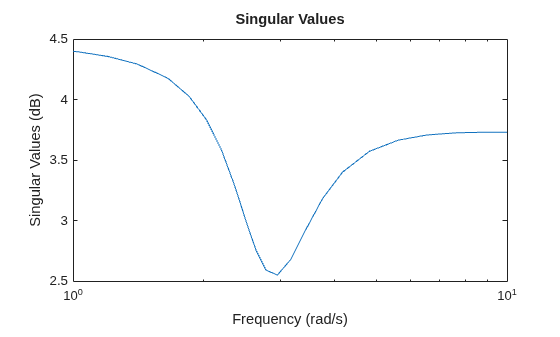
    Generate a random state-space model with 5 states and create the sigma plot with chart object sp.

    rng("default")
    sys = rss(5);
    sp = sigmaplot(sys);
    MATLAB figure

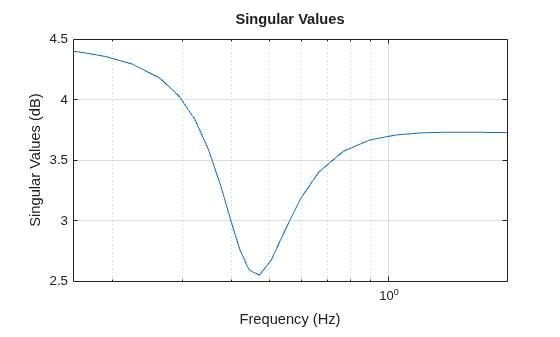
    Change the units to Hz and turn on the grid.

    sp.FrequencyUnit = "Hz";
    grid on
    MATLAB figure

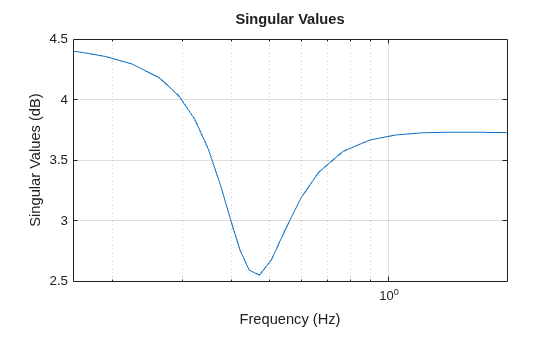
    Alternatively, you can also use the sigmaoptions command to specify the required plot options. First, create an options set based on the toolbox preferences.

    p = sigmaoptions('cstprefs');

    Change properties of the options set by setting the frequency units to Hz and enable the grid.

    p.FreqUnits = 'Hz';
    p.Grid = 'on';
    sigmaplot(sys,p);
    MATLAB figure

    Depending on your own toolbox preferences, the plot you obtain might look different from this plot. Only the properties that you set explicitly, in this example Grid and FreqUnits, override the toolbox preferences.

    For this example, create a sigma plot that uses 15-point red text for the title. This plot should look the same, regardless of the preferences of the MATLAB session in which it is generated.

    First, create a default options set using sigmaoptions.

    plotoptions = sigmaoptions;

    Next, change the required properties of the options set plotoptions.

    plotoptions.Title.FontSize = 15;
    plotoptions.Title.Color = [1 0 0];
    plotoptions.FreqUnits = 'Hz';
    plotoptions.Grid = 'on';

    Now, create a sigma plot using the options set plotoptions.

    h = sigmaplot(tf(1,[1,1]),plotoptions);
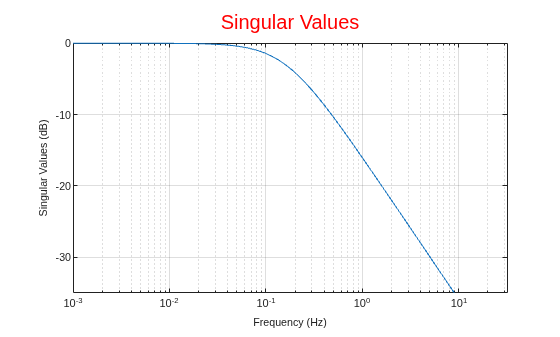
    MATLAB figure

    Because plotoptions begins with a fixed set of options, the plot result is independent of the toolbox preferences of the MATLAB session.

    For this example, create a sigma plot of the following continuous-time SISO dynamic system. Then, turn the grid on, rename the plot and change the frequency scale.

    sys(s)=s2+0.1s+7.5s4+0.12s3+9s2.Continuous-time SISO dynamic system

    Create the transfer function sys.

    sys = tf([1 0.1 7.5],[1 0.12 9 0 0]);

    Next, create the options set using sigmaoptions and change the required plot properties.

    plotoptions = sigmaoptions;
    plotoptions.Grid = 'on';
    plotoptions.FreqScale = 'linear';
    plotoptions.Title.String = 'Singular Value Plot of Transfer Function';

    Now, create the sigma plot with the custom option set plotoptions.

    h = sigmaplot(sys,plotoptions);
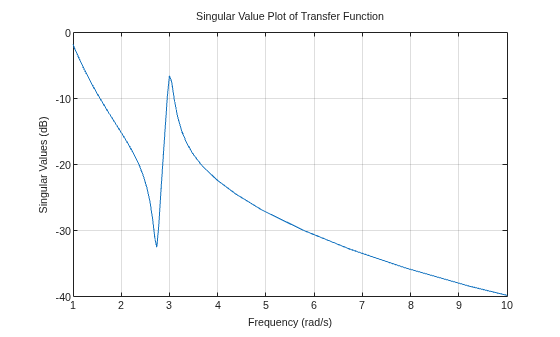
    MATLAB figure

    sigmaplot automatically selects the plot range based on the system dynamics.

    For this example, consider a MIMO state-space model with 3 inputs, 3 outputs and 3 states. Create a sigma plot with linear frequency scale, frequency units in Hz and turn the grid on.

    Create the MIMO state-space model sys_mimo.

    J = [8 -3 -3; -3 8 -3; -3 -3 8];
    F = 0.2*eye(3);
    A = -J\F;
    B = inv(J);
    C = eye(3);
    D = 0;
    sys_mimo = ss(A,B,C,D);
    size(sys_mimo)
    State-space model with 3 outputs, 3 inputs, and 3 states.
    

    Create a sigma plot with chart object sp.

    sp = sigmaplot(sys_mimo);
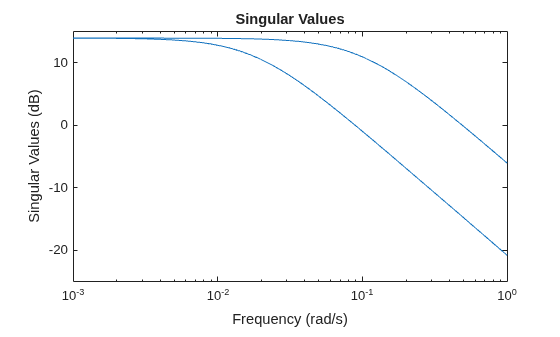
    MATLAB figure

    Update the plot by modifying the chart object.

    sp.FrequencyScale = "linear";
    sp.FrequencyUnit = "Hz";
    grid
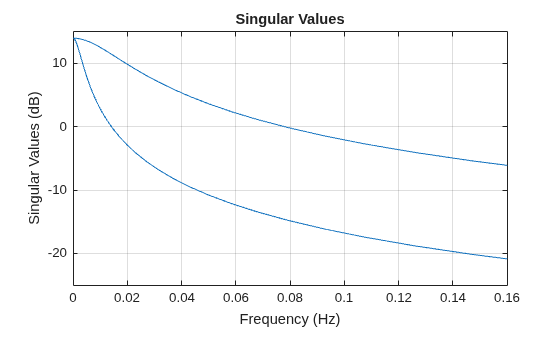
    MATLAB figure

    The sigma plot automatically updates when you modify the chart object.

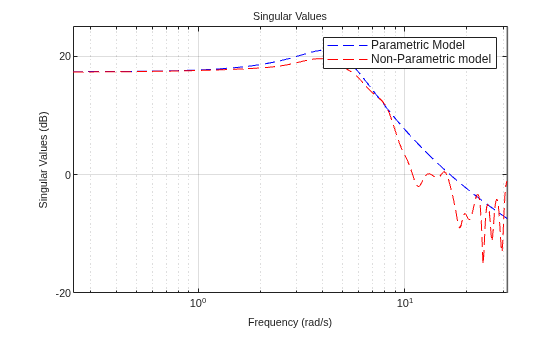
    For this example, compare the SV for the frequencies of a parametric model, identified from input/output data, to a non-parametric model identified using the same data. Identify parametric and non-parametric models based on the data.

    Load the data and create the parametric and non-parametric models using tfest and spa, respectively.

    load iddata2 z2;
    w = linspace(0,10*pi,128);
    sys_np = spa(z2,[],w);
    sys_p = tfest(z2,2);

    spa and tfest require System Identification Toolbox™ software. The model sys_np is a non-parametric identified model while, sys_p is a parametric identified model.

    Create an options set to turn the grid on. Then, create a sigma plot that includes both systems using this options set.

    plotoptions = sigmaoptions;  
    plotoptions.Grid = 'on';
    h = sigmaplot(sys_p,'b--',sys_np,'r--',w,plotoptions);
    legend('Parametric Model','Non-Parametric model');
    MATLAB figure

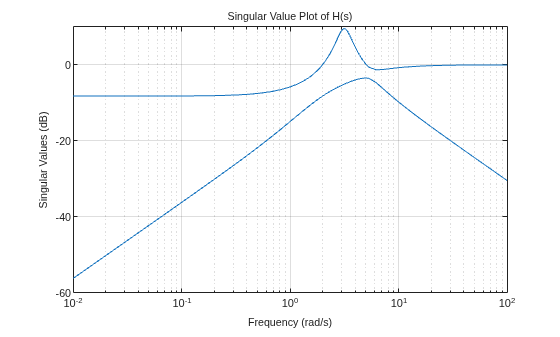
    Consider the following two-input, two-output dynamic system.

    H(s)=[03ss2+s+10s+1s+52s+6].

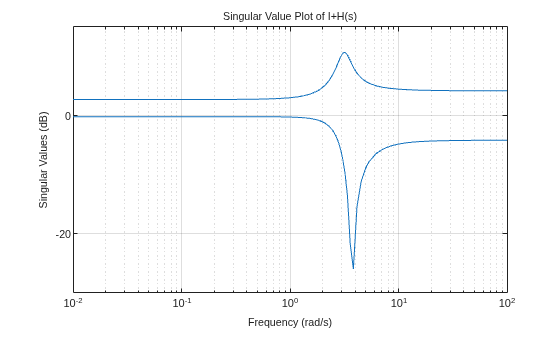
    Plot the singular value responses of H(s) and I + H(s). Set appropriate titles using the plot option set.

    H = [0, tf([3 0],[1 1 10]) ; tf([1 1],[1 5]), tf(2,[1 6])];
    opts1 = sigmaoptions;
    opts1.Grid = 'on';
    opts1.Title.String = 'Singular Value Plot of H(s)';
    h1 = sigmaplot(H,opts1);

    Use input 2 to plot the modified SV of type, I + H(s).

    opts2 = sigmaoptions;
    opts2.Grid = 'on';
    opts2.Title.String = 'Singular Value Plot of I+H(s)';
    h2 = sigmaplot(H,[],2,opts2);
    MATLAB figure

    MATLAB figure

    Input Arguments

    collapse all

    Dynamic system, specified as a SISO or MIMO dynamic system model or array of dynamic system models. You can use these types of dynamic systems:

    • Continuous-time or discrete-time numeric LTI models, such as tf, zpk, or ss models.

    • Sparse state-space models, such as sparss or mechss models. Frequency grid w must be specified for sparse models.

    • Generalized or uncertain LTI models, such as genss or uss (Robust Control Toolbox) models. Using uncertain models requires Robust Control Toolbox™ software.

      • For tunable control design blocks, the function evaluates the model at its current value to plot the response.

      • For uncertain control design blocks, the function plots the nominal value and random samples of the model.

    • Frequency-response data models, such as frd models. For such models, the function plots the response at the frequencies defined in the model.

    • Identified LTI models, such as idtf (System Identification Toolbox), idss (System Identification Toolbox), or idproc (System Identification Toolbox) models. Using identified models requires System Identification Toolbox™ software.

    If sys is an array of models, the plot shows responses of all models in the array on the same axes.

    Line style, marker, and color, specified as a string or character vector containing symbols. The symbols can appear in any order. You do not need to specify all three characteristics. For example, specify the marker and omit the line style, then the plot shows only the marker and no line.

    Example: '--or' is a red dashed line with circle markers.

    Line StyleDescription
    "-"Solid line
    "--"Dashed line
    ":"Dotted line
    "-."Dash-dotted line
    MarkerDescription
    "o"Circle
    "+"Plus sign
    "*"Asterisk
    "."Point
    "x"Cross
    "_"Horizontal line
    "|"Vertical line
    "s"Square
    "d"Diamond
    "^"Upward-pointing triangle
    "v"Downward-pointing triangle
    ">"Right-pointing triangle
    "<"Left-pointing triangle
    "p"Pentagram
    "h"Hexagram
    ColorDescription
    "r"red
    "g"green
    "b"blue
    "c"cyan
    "m"magenta
    "y"yellow
    "k"black
    "w"white

    Frequencies at which to compute the response, specified as one of these values:

    • Cell array of the form {wmin,wmax} — Compute the response at frequencies in the range from wmin to wmax. If wmax is greater than the Nyquist frequency of sys, the response is computed only up to the Nyquist frequency.

    • Vector of frequencies — Compute the response at each specified frequency. For example, use logspace to generate a row vector with logarithmically spaced frequency values. The vector w can contain both positive and negative frequencies.

    • [] — Automatically select frequencies based on system dynamics.

    For models with complex coefficients, if you specify a frequency range of [wmin,wmax] for your plot, then in:

    • Log frequency scale, the plot frequency limits are set to [wmin,wmax] and the plot shows two branches, one for positive frequencies [wmin,wmax] and one for negative frequencies [–wmax,–wmin].

    • Linear frequency scale, the plot frequency limits are set to [–wmax,wmax] and the plot shows a single branch with a symmetric frequency range centered at a frequency value of zero.

    Specify frequencies in units of rad/TimeUnit, where TimeUnit is the TimeUnit property of the model.

    Type of modified singular values to plot, specified as one of the following values.

    • 1 — Plot the singular values of the frequency response H-1, where H is the frequency response of sys.

    • 2 — Plot the singular values of the frequency response I+H.

    • 3 — Plot the singular values of the frequency response I+H-1.

    Dependencies

    You can specify type only when sys has the same number of inputs and outputs.

    Singular-value plot options, specified as a sigmaoptions object. You can use these options to customize the plot appearance. Settings you specify in plotoptions override the preference settings for the current MATLAB session.

    Parent graphics container, specified as one of these objects:

    • Figure

    • TiledChartLayout

    • UIFigure

    • UIGridLayout

    • UIPanel

    • UITab

    Name-Value Arguments

    collapse all

    Specify optional pairs of arguments as Name1=Value1,...,NameN=ValueN, where Name is the argument name and Value is the corresponding value. Name-value arguments must appear after other arguments, but the order of the pairs does not matter.

    Example: sigmaplot(sys,LegendDisplay="off") hides the response of sys from the plot legend.

    Frequencies at which to compute the response, specified as one of these values:

    • Cell array of the form {wmin,wmax} — Compute the response at frequencies in the range from wmin to wmax. If wmax is greater than the Nyquist frequency of sys, the response is computed only up to the Nyquist frequency.

    • Vector of frequencies — Compute the response at each specified frequency. For example, use logspace to generate a row vector with logarithmically spaced frequency values. The vector FrequencySpec can contain both positive and negative frequencies.

    • [] — Automatically select frequencies based on system dynamics.

    For models with complex coefficients, if you specify a frequency range of [wmin,wmax] for your plot, then in:

    • Log frequency scale, the plot frequency limits are set to [wmin,wmax] and the plot shows two branches, one for positive frequencies [wmin,wmax] and one for negative frequencies [–wmax,–wmin].

    • Linear frequency scale, the plot frequency limits are set to [–wmax,wmax] and the plot shows a single branch with a symmetric frequency range centered at a frequency value of zero.

    Specify frequencies in units of rad/TimeUnit, where TimeUnit is the TimeUnit property of the model.

    Type of modified singular values to plot, specified as one of the following values.

    • 1 — Plot the singular values of the frequency response H-1, where H is the frequency response of sys.

    • 2 — Plot the singular values of the frequency response I+H.

    • 3 — Plot the singular values of the frequency response I+H-1.

    Dependencies

    You can specify SingularValueType only when sys has the same number of inputs and outputs.

    Response name, specified as a string or character vector and stored as a string.

    Response visibility, specified as one of these logical on/off values:

    • "on", 1, or true — Display the response in the plot.

    • "off", 0, or false — Do not display the response in the plot.

    The value is stored as an on/off logical value of type matlab.lang.OnOffSwitchState.

    Option to list the response in the legend, specified as one of these logical on/off values:

    • "on", 1, or true — List the response in the legend.

    • "off", 0, or false — Do not list the response in the legend.

    The value is stored as an on/off logical value of type matlab.lang.OnOffSwitchState.

    Marker style, specified as one of these values. Specifying a marker style using a name-value argument overrides any marker style that you specify using LineSpec.

    MarkerDescription
    "none"No marker
    "o"Circle
    "+"Plus sign
    "*"Asterisk
    "."Point
    "x"Cross
    "_"Horizontal line
    "|"Vertical line
    "s"Square
    "d"Diamond
    "^"Upward-pointing triangle
    "v"Downward-pointing triangle
    ">"Right-pointing triangle
    "<"Left-pointing triangle
    "p"Pentagram
    "h"Hexagram

    Plot color, specified as an RGB triplet or a hexadecimal color code and stored as an RGB triplet. Specifying a color using a name-value argument overrides any color that you specify using LineSpec.

    You can also specify some common colors by name. This table lists these colors and their corresponding RGB triplets and hexadecimal color codes.

    Color NameRGB TripletHexadecimal Color Code

    "red" or "r"

    [1 0 0]#FF0000

    "green" or "g"

    [0 1 0]#00FF00

    "blue" or "b"

    [0 0 1]#0000FF

    "cyan" or "c"

    [0 1 1]#00FFFF

    "magenta" or "m"

    [1 0 1]#FF00FF

    "yellow" or "y"

    [1 1 0]#FFFF00

    "black" or "k"

    [0 0 0]#000000

    "white" or "w"

    [1 1 1]#FFFFFF

    Line style, specified as one of these values. Specifying a line style using a name-value argument overrides any line style that you specify using LineSpec.

    Line StyleDescription
    "-"Solid line
    "--"Dashed line
    ":"Dotted line
    "-."Dash-dotted line
    "none"No line

    Marker size, specified as a positive scalar.

    Line width, specified as a positive scalar.

    Series index, specified as a positive integer or "none".

    By default, the SeriesIndex property is a number that corresponds to the order in which the response was added to the chart, starting at 1. MATLAB uses the number to calculate indices for automatically assigning color, line style, or markers for responses. Any responses in the chart that have the same SeriesIndex number also have the same color, line style, and markers.

    A SeriesIndex value of "none" indicates that a response does not participate in the indexing scheme.

    Output Arguments

    collapse all

    Chart object, returned as a SigmaPlot object. To customize your plot appearance and behavior, modify the properties of this object using dot notation. For more information, see SigmaPlot Properties.

    Version History

    Introduced before R2006a

    expand all