choose
Class: matlab.uitest.TestCase
Namespace: matlab.uitest
Perform choose gesture on UI component
Syntax
Description
Components
choose(
performs a choose gesture on a UI component that does not require additional
information, such as a tab or a tree node. For example, use this syntax to
choose a specific tab, but use the previous syntax to select a particular tab
from a tab group.testCase,compNoOpts)
Table Cells
Multiple Elements
choose(
uses the specified selection mode to select multiple elements within the
component testCase,compsm,elements,SelectionMode=mode)compsm. For example,
choose(testCase,uit,[1 1; 3
3],SelectionMode="contiguous") selects the cells with indices (1,
1) and (3, 3) and all cells in between these cells from the specified
table.
Input Arguments
Test case, specified as a matlab.uitest.TestCase object.
Component under test, specified as a UI component object that supports a choose gesture. This table shows the components that support choose gestures.
| Supported Component | Typical Creation Function |
|---|---|
| Button group | uibuttongroup |
| Check box | uicheckbox |
| Discrete knob | uiknob |
| Drop-down list | uidropdown |
| Knob | uiknob |
| List box | uilistbox |
| Radio button | uiradiobutton |
| Slider | uislider |
| State button | uibutton |
| Switch (rocker, slider, toggle) | uiswitch |
| Tab group | uitabgroup |
| Toggle button | uitogglebutton |
| Toggle tool | uitoggletool |
Option to choose within the UI component, specified as a value that
depends on the type of component being tested. For example, if the component
is a switch, option can be a text or numeric value from
the Items property of the switch. If the component is a
check box or toggle tool, option can be a logical
value. For a table UI component with editable cells,
option can be a logical value or a drop-down item
corresponding to the data contained in the cell.
When a component has an Items property,
option can be the value of an element in
Items or the index to an element in
Items. For example, for a default discrete knob,
you can choose the Medium knob value by specifying
option as either "Medium" or
3.
Component with no options, specified as a Tab or
TreeNode object. This table shows the components that
support a choose gesture and do not require additional information.
| Supported Component | Typical Creation Function |
|---|---|
| Tab | uitab |
| Tree node | uitreenode |
Target table UI component, specified as a Table object.
Table UI components are created using the uitable function.
Indices of the table cell to select, specified as a 1-by-2 numeric vector. The first and second elements of the vector correspond to the row and column indices of the table cell, respectively.
Example: [1 2]
Component from which to select multiple elements, specified as a
ListBox or Table object. This table shows
the components that support using a choose gesture that selects multiple
elements.
Example: uilistbox(Multiselect="on")
Example: uitable(Data=randi(100,10,3))
Component elements to select, specified as a numeric array, string vector,
or cell vector of character vectors. The type and shape of
elements depend on the component and selection
mode.
| Component | Selection Mode | |
|---|---|---|
| Discontiguous | Contiguous | |
| List Box | An N-element numeric vector, string vector, or cell vector of character vectors, where N is the number of list box items to select. You can specify either the names or the indices of the items. | A two-element numeric vector, string vector, or cell vector of character vectors that specifies the range of list box items to select. You can specify either the names or the indices of the first and last items in the range. The method performs a choose gesture on the specified items as well as all items between them. |
| Table | An N-by-2 numeric matrix, where N is the number of table cells to select. Each matrix row corresponds to the row and column indices of a cell to select. | A 2-by-2 numeric matrix that specifies the boundaries of the block of table cells to select. Each matrix row corresponds to the row and column indices of a cell. The method performs a choose gesture on the specified cells as well as all cells between them. |
Example: [1 3 4] (discontiguous selection of three list
box items)
Example: ["Item 1" "Item 4"] (discontiguous selection of
two list box items, or contiguous selection of four list box
items)
Example: [2 3; 2 4; 5 1] (discontiguous selection of
three table cells)
Example: [1 1; 3 3] (discontiguous selection of two
table cells, or contiguous selection of nine table cells)
Selection mode, specified as one of the following values. This input controls how multiple elements are selected within a component:
"discontiguous"— The method performs a choose gesture on only the elements specified in theelementsinput argument. An example of discontiguous selection is clicking a table cell, holding Ctrl (Command on macOS systems), and then clicking one or more noncontiguous cells."contiguous"— The method performs a choose gesture on the elements specified in theelementsinput argument and all elements between them. An example of contiguous selection is clicking a table cell, holding Shift, and then clicking another cell to select all the cells between them.
Data Types: string | char
Examples
Create a discrete knob.
knob = uiknob("discrete");
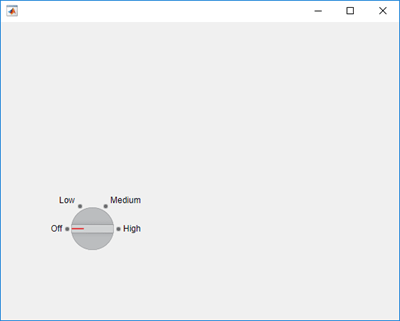
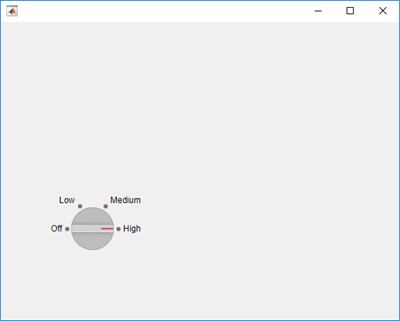
Create an interactive test case and choose the High knob value. An animated blue dot indicates the programmatic choose gesture.
testCase = matlab.uitest.TestCase.forInteractiveUse;
testCase.choose(knob,"High")
View the value of the Items property of the knob.
knob.Items
ans =
1×4 cell array
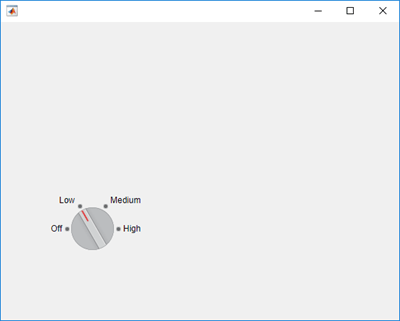
{'Off'} {'Low'} {'Medium'} {'High'}Choose the Low knob value by index. The knob moves from High to Low.
testCase.choose(knob,2)
Create a slider.
s = uislider;
Create an interactive test case and verify that the value of the slider
button is 0.
testCase = matlab.uitest.TestCase.forInteractiveUse; testCase.verifyEqual(s.Value,0)
Verification passed.
Choose a new slider value and verify that the slider value changes. Because the method simulates a user manipulating the component to an arbitrarily precisioned value, it is a best practice to use a tolerance to compare the actual and expected slider values.
expVal = 50; testCase.choose(s,expVal) testCase.verifyEqual(s.Value,expVal,AbsTol=1)
Verification passed.
Create a figure with two tabs.
fig = uifigure; group = uitabgroup(fig); tab1 = uitab(group,Title="Tab #1"); tab2 = uitab(group,Title="Tab #2");
Create an interactive test case and verify that the selected tab title
contains the substring "#1".
testCase = matlab.uitest.TestCase.forInteractiveUse;
testCase.verifySubstring(group.SelectedTab.Title,"#1")verification passed.
Select the second tab and verify the change in selection.
testCase.choose(group,"Tab #2")
testCase.verifyEqual(group.SelectedTab,tab2)Verification passed.
Create a table UI component that contains text and logical values.
name = {'Smith'; 'Chang'; 'Green'};
address = { ...
sprintf('456 Elm Avenue\nApt. 789\nNew York, NY 67890'); ...
sprintf('123 Maple Street\nBoston, MA 12345'); ...
sprintf('789 Oak Lane\nLos Angeles, CA 23456')};
eligibility = {true; true; false};
fig = uifigure;
uit = uitable( ...
Parent=fig, ...
Position=[20 20 400 200], ...
Data=[name address eligibility], ...
ColumnName=["Last Name" "Address" "Eligible"], ...
ColumnEditable=[false false true]);
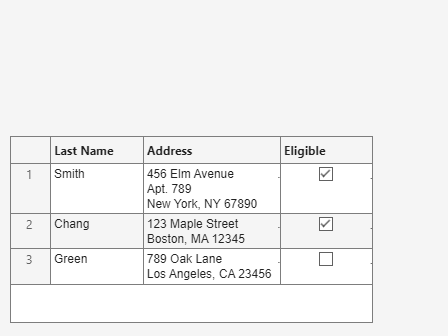
Create a test case for interactive testing and select the table cell with indices (2, 2). The choose method makes a selection by pressing at the center of the cell.
testCase = matlab.uitest.TestCase.forInteractiveUse; testCase.choose(uit,[2 2])
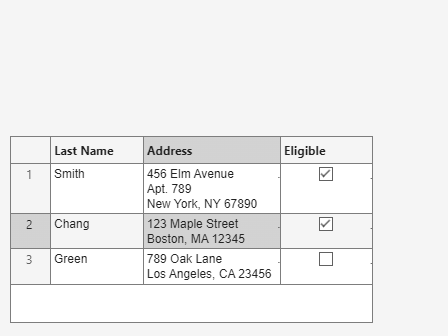
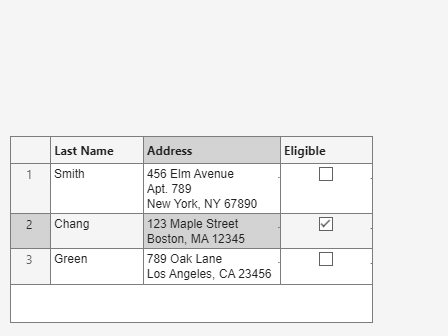
Clear the check box in the table cell with indices (1, 3) by selecting that cell. Because the specified table cell contains a logical value, the choose method interacts with the check box instead of pressing at the center of the cell.
testCase.choose(uit,[1 3])
Create a table UI component that displays a 10-by-3 array of random integers.
fig = uifigure; uit = uitable(fig,Data=randi(100,10,3));
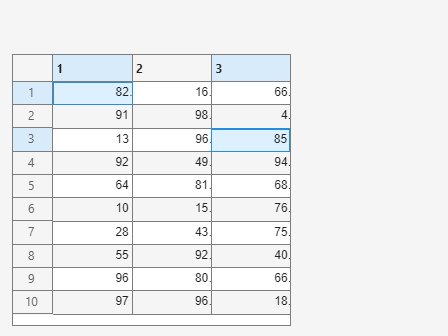
Create an interactive test case and select the cells with indices (1, 1) and (3, 3).
testCase = matlab.uitest.TestCase.forInteractiveUse; testCase.choose(uit,[1 1; 3 3])
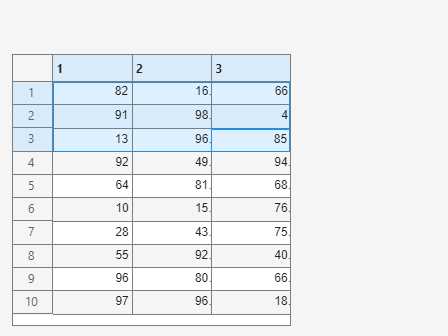
Now, select the cells with indices (1, 1) and (3, 3) and all the cells between them.
testCase.choose(uit,[1 1; 3 3],SelectionMode="contiguous")
Create a list box that supports multiple item selection.
fig = uifigure;
listbox = uilistbox(fig,Multiselect="on");
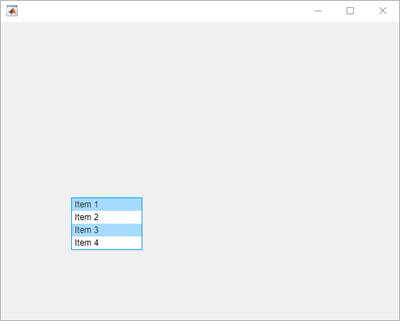
Create an interactive test case and select the first and third items in
the list box. You can specify the items to select either by their names in
the Items property (["Item 1" "Item
3"]) or by their indices ([1 3]).
testCase = matlab.uitest.TestCase.forInteractiveUse; testCase.choose(listbox,[1 3])
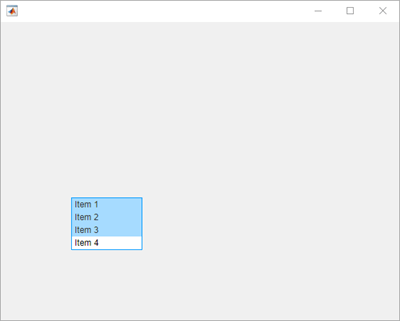
Now, select items 1 through 3 by simulating a Shift+click action.
testCase.choose(listbox,[1 3],SelectionMode="contiguous")
Version History
Introduced in R2018aYou can simulate a Shift+click action to select a range of list
box items. To programmatically select a range of contiguous items in a list box,
specify two elements to select and specify the mode input
argument as "contiguous".
To better mimic a user who must expand tree nodes to interact with a nested node,
the node expanded callback executes when you perform a gesture on a collapsed tree
node by using the choose method. You can specify the callback by
setting the NodeExpandedFcn property of the tree.
For example, perform a choose gesture on a nested node in a tree, and display the text of any programmatically expanded nodes.
fig = uifigure; t = uitree(fig); t.NodeExpandedFcn = @(src,event) disp(event.Node.Text); parent = uitreenode(t,"Text","Runners"); child1 = uitreenode(parent,"Text","Joe"); child2 = uitreenode(parent,"Text","Linda"); testCase = matlab.uitest.TestCase.forInteractiveUse; testCase.choose(child2)
If you do not want the callback to execute, preserving the behavior in R2023b and earlier, expand the tree node before performing the gesture. In this code, the callback does not execute.
fig = uifigure; t = uitree(fig); t.NodeExpandedFcn = @(src,event) disp(event.Node.Text); parent = uitreenode(t,"Text","Runners"); child1 = uitreenode(parent,"Text","Joe"); child2 = uitreenode(parent,"Text","Linda"); testCase = matlab.uitest.TestCase.forInteractiveUse; expand(parent) testCase.choose(child2)
You can perform choose gestures in tests on table UI components. The
choose method has new syntaxes to test a choose gesture on a
single table cell or multiple table cells.
You can perform choose gestures in tests on toggle tools.
When you choose a radio button or toggle button using an index, the app testing
framework indexes into the Buttons property of the
ButtonGroup object. In previous releases, the framework indexes
into the Children property of the ButtonGroup
object. For example, create a button group that has six toggle
buttons:
f = uifigure; bg = uibuttongroup(f); tb1 = uitogglebutton(bg,'Position',[11 165 140 22],'Text','One'); tb2 = uitogglebutton(bg,'Position',[11 140 140 22],'Text','Two'); tb3 = uitogglebutton(bg,'Position',[11 115 140 22],'Text','Three'); tb4 = uitogglebutton(bg,'Position',[11 90 140 22],'Text','Four'); tb5 = uitogglebutton(bg,'Position',[11 65 140 22],'Text','Five'); tb6 = uitogglebutton(bg,'Position',[11 40 140 22],'Text','Six');
This table shows the outcome of the choose gesture on a toggle button that is
specified with index 2:
| Test | Starting in R2020b | R2020a and Earlier |
|---|---|---|
tc = matlab.uitest.TestCase.forInteractiveUse; tc.choose(bg,2) | MATLAB® chooses toggle button | MATLAB chooses toggle button |
MATLAB Command
You clicked a link that corresponds to this MATLAB command:
Run the command by entering it in the MATLAB Command Window. Web browsers do not support MATLAB commands.
Seleziona un sito web
Seleziona un sito web per visualizzare contenuto tradotto dove disponibile e vedere eventi e offerte locali. In base alla tua area geografica, ti consigliamo di selezionare: .
Puoi anche selezionare un sito web dal seguente elenco:
Come ottenere le migliori prestazioni del sito
Per ottenere le migliori prestazioni del sito, seleziona il sito cinese (in cinese o in inglese). I siti MathWorks per gli altri paesi non sono ottimizzati per essere visitati dalla tua area geografica.
Americhe
- América Latina (Español)
- Canada (English)
- United States (English)
Europa
- Belgium (English)
- Denmark (English)
- Deutschland (Deutsch)
- España (Español)
- Finland (English)
- France (Français)
- Ireland (English)
- Italia (Italiano)
- Luxembourg (English)
- Netherlands (English)
- Norway (English)
- Österreich (Deutsch)
- Portugal (English)
- Sweden (English)
- Switzerland
- United Kingdom (English)